From the couch to a shell in fifteen seconds
Wake-on-LAN, a suspend timer that knows when an agent is still working, and a short script that works out what state the desktop is in by reading the banner on port 22.
Part two of a series on wiring my machines together. Previously: four machines, one desk. Next: unlocking an encrypted disk from the couch.
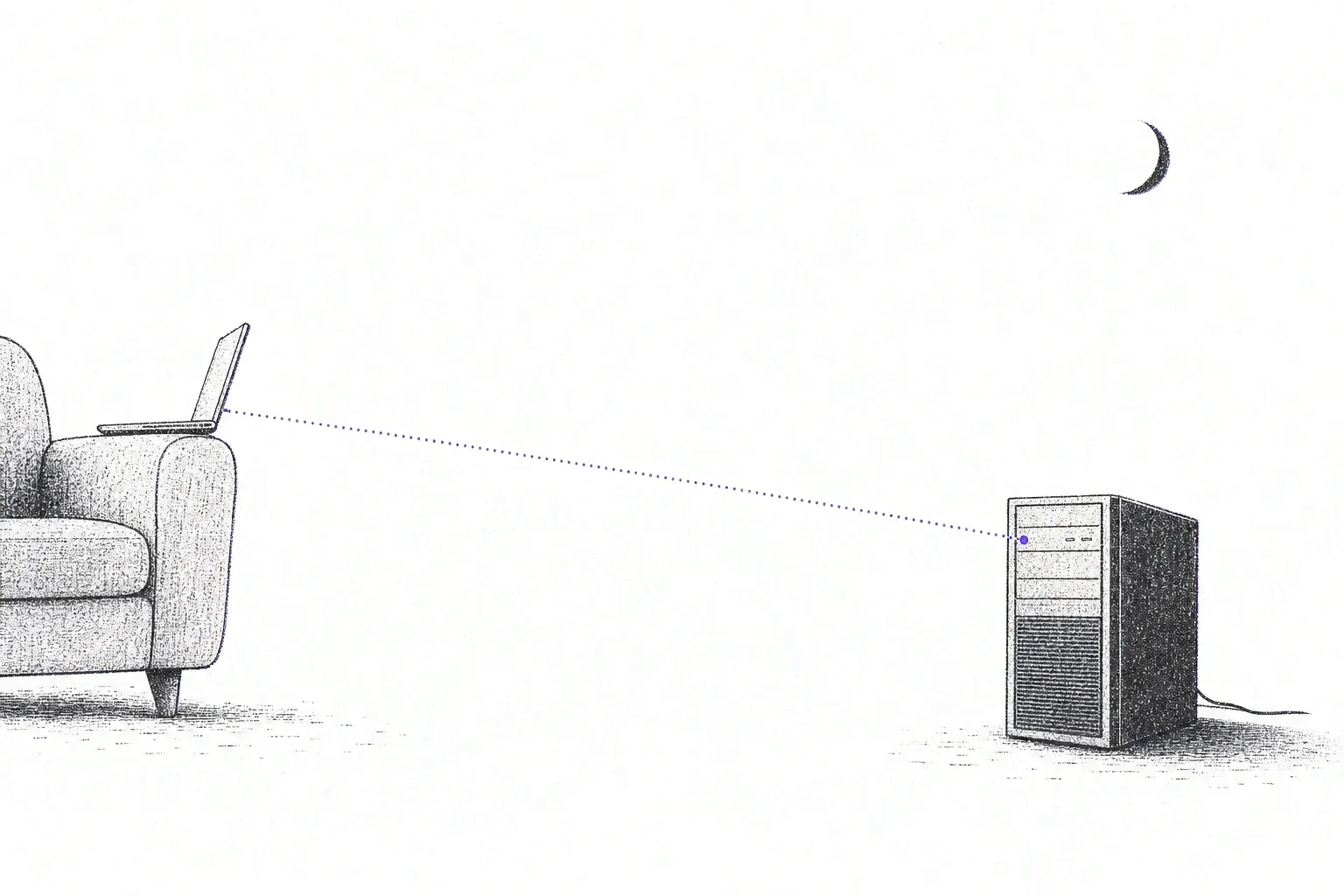
The goal was one command on the laptop. I type work, and a few seconds later I’m in my persistent session on the desktop, whether the desktop was awake, asleep, or sitting at the disk-encryption prompt after a reboot.
That command is about fifty lines of bash now, and most of the work wasn’t in it. It was in making the desktop safe to put to sleep, which is the only reason waking it up matters.
Wake-on-LAN, the part everyone gets half right
Wake-on-LAN is old and simple. The NIC stays powered while the machine sleeps, watches the wire for a “magic packet” — six bytes of 0xFF followed by its own MAC address sixteen times — and wakes the machine when it sees one.
It needs three things to line up, and every guide I’ve read covers two of them.
The firmware has to keep the NIC powered. On my board that meant turning Resume By PCI-E Device on and ErP Ready off. ErP is an EU low-standby-power mode. It’s the setting that makes WoL silently not work, because it cuts power to exactly the component that’s supposed to be listening.
The driver has to arm it. ethtool -s enp42s0 wol g does it once, and it’s gone after the next reboot. On a NetworkManager system the persistent version is a property of the connection:
nmcli con modify "Wired connection 1" 802-3-ethernet.wake-on-lan magic
# applies without dropping the link, so it's safe over SSH
nmcli device reapply enp42s0
Suspend has to actually work. This is the one people skip. WoL from suspend-to-RAM is fast and dependable on most boards; WoL from a full shutdown varies. So “make the desktop wakeable” turned into “make the desktop suspend and resume properly”, and with an NVIDIA card that’s its own project. The driver needs nvidia-suspend and nvidia-resume enabled to save and restore video memory around sleep. Without them the machine resumes to a black screen that looks exactly like a hang.
I tested suspend and resume at the desk before trusting it from the couch, and again after the next driver update. A machine you can’t see that fails to resume is a walk across the house to find out why.
Suspending when nobody’s using it
Once the machine can be woken, it can afford to sleep. But “idle” means something specific for a box whose job is to run agents while I’m not looking.
The desktop’s input-idle timer isn’t the right signal. An agent halfway through a long test suite generates no keyboard or mouse input. Neither does an SSH session from the couch. A desktop that suspends during either of those is worse than one that never suspends.
So suspend is a script on a one-minute systemd user timer, and it only counts the machine as idle when all of these are true:
[[ -f $HOME/.local/state/omarchy/indicators/stay-awake ]] && busy "stay-awake toggle on"
[[ $(omarchy-shell lock isLocked 2>/dev/null) == "true" ]] || busy "desktop unlocked"
pgrep -u "$USER" -x sshd-session >/dev/null && busy "ssh session connected"

herdr agent list 2>/dev/null | grep -q '"agent_status":"working"' && busy "herdr agent working"

load5=$(cut -d' ' -f2 /proc/loadavg)
awk -v l="$load5" -v m="$MAX_LOAD" 'BEGIN { exit !(l >= m) }' && busy "load $load5"
The desktop is locked. Nobody is connected over SSH. No agent in herdr is marked as working. The five-minute load average is under 1, which catches builds, containers, and anything else I forgot to name. And Omarchy’s “stay awake” toggle is off, which is the escape hatch for whatever the other checks miss.
busy deletes a marker file and exits. When everything is quiet, the script writes the marker, and on later runs it compares the marker’s age against a twenty-minute threshold. If anything is ever busy, the countdown starts over.
The bug I hit was ordering. The first version suspended and then cleared the marker. On resume, the timer fired, found a marker from twenty-plus minutes ago, and put the machine straight back to sleep. Now the marker is deleted before systemctl suspend, so every resume starts a fresh countdown.
One more permission problem: systemctl suspend from an SSH session or a user timer gets refused, because logind only lets the active seat session suspend without authenticating. A short polkit rule grants it — suspend only, not poweroff or reboot:
polkit.addRule(function (action, subject) {
  if (subject.user == "you" &&
      (action.id == "org.freedesktop.login1.suspend" ||
       action.id == "org.freedesktop.login1.suspend-multiple-sessions")) {
    return polkit.Result.YES;
  }
});
The work script
With the desktop able to sleep and wake, the laptop side has one job: figure out what state the desktop is in, and do the right thing for it.
There are three states, and it turns out you can tell them apart by asking port 22 who’s there:
| Desktop is | Who answers on :22 | What to do |
|---|---|---|
| asleep or off | nobody | send a magic packet, wait |
| at the disk-unlock prompt | dropbear, in the initramfs | log in and type the disk password |
| running | OpenSSH | attach to the session |
The middle row is part three. The detection is the part I’m pleased with. Every SSH server announces itself with a banner the instant you connect, before any authentication, and the two servers name themselves:
state() {
  local banner
  banner=$( (sleep 2) | nc -G 1 "$IP" 22 2>/dev/null | head -1)
  case $banner in
    *OpenSSH*)  echo openssh ;;
    *dropbear*) echo dropbear ;;
  esac
}
No agent on the desktop, no status endpoint, nothing to keep running. The answer comes from software that has to be listening anyway.
The rest is a loop. If nobody answers, send the magic packet and poll state once a second for up to ninety seconds. If dropbear answers, run the unlock and poll again until OpenSSH shows up. Once it does, attach:
exec herdr --remote omarchyThe magic packet is a few lines of Python inline in the script, because macOS doesn’t ship a wakeonlan and I’d rather not install a package for something that’s a broadcast of 102 bytes.
From the couch, a sleeping desktop is back within seconds. Awake, it’s instant.
SSH that doesn’t ask
The last bit of friction was typing a key passphrase on every connection. I didn’t want to remove the passphrase, so the keychain holds it instead, and the laptop’s SSH config multiplexes connections so only the first one does a full handshake:
Host *
  AddKeysToAgent yes
  UseKeychain yes
  ControlMaster auto
  ControlPath ~/.ssh/cm-%r@%h:%p
  ControlPersist 10m
  ServerAliveInterval 30

Host omarchy grimmauld
  HostName grimmauld.local
macOS asks for the passphrase once per login. After that, the second ssh reuses the first one’s connection and returns before you’ve let go of the enter key.
The session is the point
Everything above exists to get me into one place: a herdr session on the desktop that was there before I connected and will still be there after I leave. Close the laptop mid-command and nothing happens to the command. Open it again, type work, and I’m back where I was, agents included.
That’s what makes the desktop usable as the main dev box when I’m not at the desk — not that I can reach it, but that reaching it puts me back exactly where I left off.
Next: what happens when the desktop reboots, and the disk won’t open until someone types a password at the desk.